Vyber: Free Discord Soundboard for Windows. Be The DJ Nobody Asked For
An easy-to-use soundboard built for Discord and voice chat. Sounds play through your speakers and into your friends' ears at the same time. No complicated audio setup needed.
Features
Everything you need for a soundboard that actually works in voice chat.
Dual Audio Output
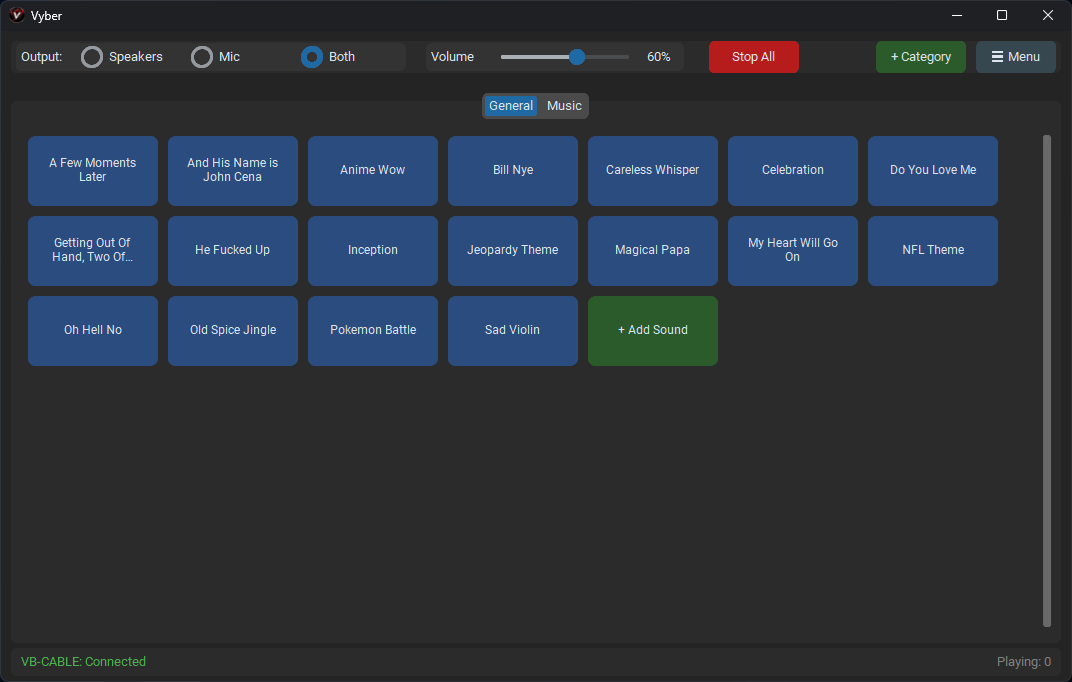
Play sounds through your speakers and virtual microphone simultaneously. People in voice chat hear your sounds instantly.
One-Click Setup
Vyber installs VB-CABLE for you and handles all audio routing automatically. Just download and run.
Mic Passthrough
Your voice and soundboard audio are mixed together so you can talk and play sounds at the same time.
Global Hotkeys
Trigger any sound with a keyboard shortcut that works even while you're in a game or another app.
Organized Library
Sort your sounds into tabbed categories. Add, rename, reorder, and manage everything with drag-and-drop.
Per-Sound Volume
Adjust each sound from 0% to 200%. Boost quiet clips without turning down everything else.
How It Works
Add your sounds, organize them into categories, and trigger them with a click or hotkey.
Getting Started
Download Vyber
Grab the latest Vyber.exe from the download section. No install wizard, just run it.
Install VB-CABLE
Vyber will prompt you to install VB-CABLE on first launch. Reboot after installing.
Add Sounds & Play
Add your audio files, set the output to "Both", and follow the Discord Setup guide inside the app.
Frequently Asked Questions
How do I set up Vyber with Discord?
After installing VB-CABLE, set your Discord input device to "CABLE Output (VB-Audio Virtual Cable)". Vyber routes your sounds through VB-CABLE automatically. There's a built-in Discord Setup guide in the app that walks you through it step by step.
What is VB-CABLE and why do I need it?
VB-CABLE is a free virtual audio driver that creates a virtual microphone on your PC. Vyber uses it to send soundboard audio into voice chat apps like Discord. Vyber installs it for you automatically on first launch.
Does Vyber work with OBS, Teamspeak, or other apps?
Yes. Vyber works with any app that accepts a microphone input: Discord, OBS, Teamspeak, Zoom, Google Meet, and more. Just set the input device to VB-CABLE in the app you want to use.
Is Vyber really free?
Yes, Vyber is completely free and open source under the GPL v3 license. No ads, no premium tier, no subscriptions. You can view the full source code on GitHub.
How is Vyber different from Voicemeeter?
Voicemeeter is a powerful but complex virtual audio mixer. Vyber is purpose-built as a soundboard: add sounds, press a button or hotkey, and it plays through your mic. No audio routing knowledge needed. One-click setup vs. hours of configuration.
Download
Grab the latest version of Vyber: no installer needed, just download and run.
Vyber is a MortonApps project
Explore more apps →Also from MortonApps: Vapor, a free Steam game optimizer